My Work
My Work is the contributor’s page. It lists every task assigned to you, across every project you’re on, grouped into what needs your attention today, what’s committed to this sprint, and what’s coming up. There’s no Gantt chart, no work-breakdown tree, no critical-path math — just a flat list of what’s yours, what’s due, what’s blocked, and what you can update with a tap.
Open it from My Work, pinned at the top of the sidebar (with a due-today count badge when there’s something actionable), or from your avatar menu. The route is /me/work.
What you see
Section titled “What you see”Each row shows:
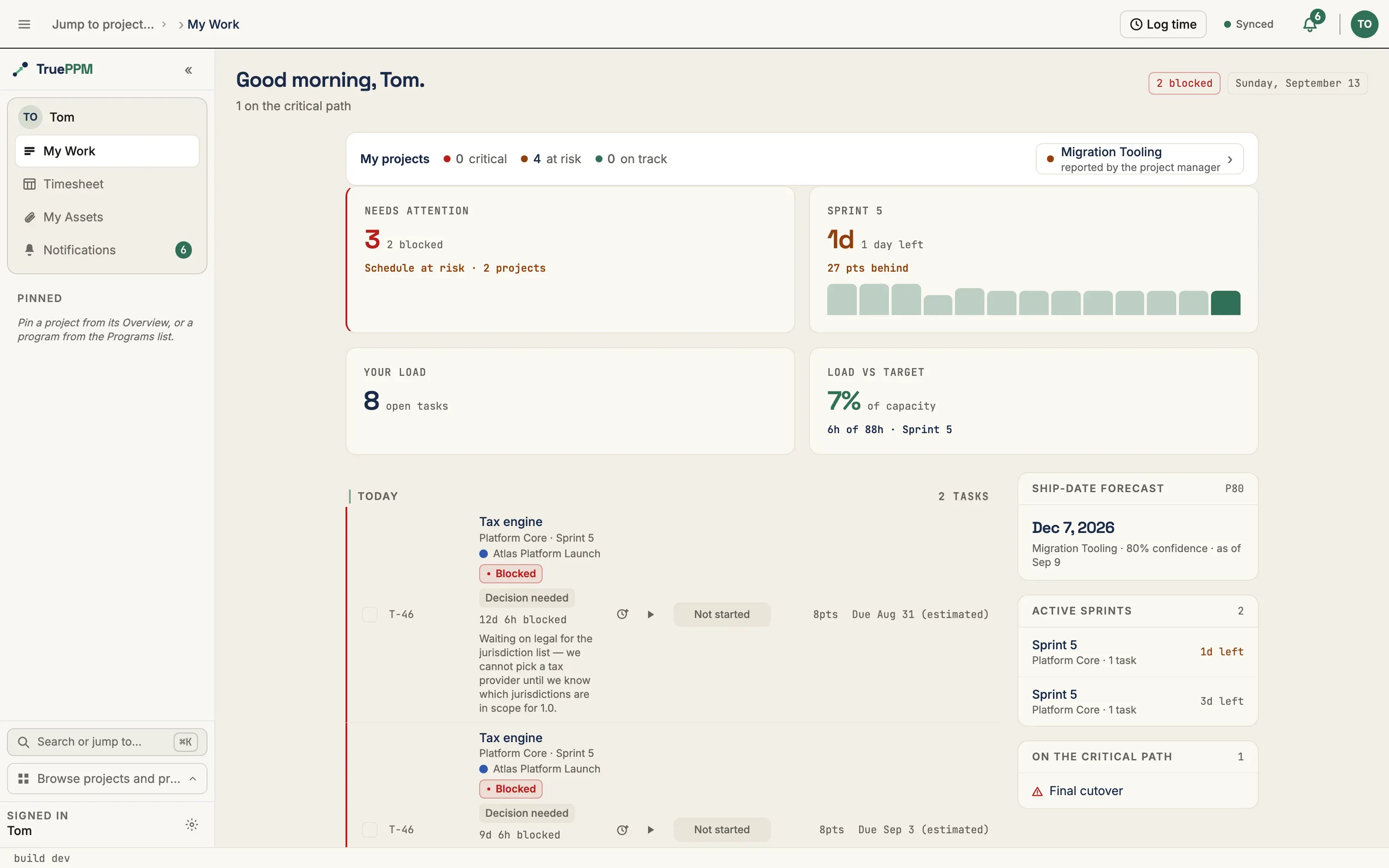
- Task name — clicks open the task in its project’s Schedule view
- Project · sprint — the project the task belongs to, and the active sprint if it’s in one
- Program marker — a small colored square and the program name, so you can tell at a glance which program a task belongs to. My Work spans every program you contribute to, so this cross-program cue lives on each row. A task on a project that isn’t part of a program shows a neutral square with no name.
- Status chip — tap to change between
Not started,In progress,In review, andComplete - Story points —
5ptsor5pts · 2 leftwhen remaining points differ - Due date with a source label so you know what the date means:
Due May 30 (planned)— the project manager committed to this dateDue May 30 (estimated)— the scheduling engine computed this date from the project’s dependenciesEnds with sprint— the task doesn’t have its own due date; it ends when the sprint endsDone May 28— the task is already complete
A ⚠ icon to the left of the row appears when the task is on the schedule’s critical path — a delay on that task delays the whole project. The icon’s tooltip explains it in plain English; the words “critical path” never appear on the page.
Groupings
Section titled “Groupings”Tasks are grouped into three sections, computed on the server so every client groups them the same way:
- Today — anything due today or overdue (and not yet done). What you should pick up first.
- This Sprint — your remaining work committed to the current active sprint.
- Upcoming — everything else assigned to you.
Within each section, blocked tasks sort first, then by due date and priority. A blocked task shows a red Blocked badge — and, when one is set, a blocker type (“External vendor”, “Decision needed”, and so on) and an age (“2d 3h blocked”) so you can see at a glance what is stuck and for how long. At the top of the page, a blocked-count chip will show how many of your tasks are flagged; tap it to filter the list to just the blocked ones, and tap again to clear.
What is shared, and what stays private (added in 0.3, ADR-0124)
Section titled “What is shared, and what stays private (added in 0.3, ADR-0124)”A blocker has two halves. The structured signal — the blocker type, its age, who flagged it, and an optional “waiting on” link to another task — is team-shareable: it drives the notifications and roll-ups your Scrum Master and PM use to clear impediments. The free-text reason you type is private: only you (the assignee) and anyone you @-mention on the task can read it. It is never carried in a notification, a roll-up, or the standup, and a teammate who is not the assignee or @-mentioned has no way to read or filter on it. The type is the triage signal; your words stay your voice.
When you flag a task blocked, the Scrum Master and PM are notified (each can mute it in their notification preferences), and the task appears in the project’s and the sprint’s blocked roll-up — both carrying the type and age, never the reason.
Your focus row (shipped in 0.4)
Section titled “Your focus row (shipped in 0.4)”Above your task list, a row of focus cards summarizes where you stand across every program you work in. The worst signal leads, so the card you most need to act on is the biggest and reads first. Each card shows a real, server-computed figure — and where a figure has no real source yet, it is simply left off rather than estimated:
- Needs attention — how many of your tasks are blocked or on the critical path. When a schedule-health reading is available, the card adds a schedule (SPI) line — on track, at risk, or critical — rolled up across your projects, worst first.
- Your sprint — days left in your soonest-ending active sprint, with the real burndown behind the card’s spark and a plain-English pace line (“5 pts behind”, “on track”, “3 pts ahead”) when the sprint has a points baseline.
- Your load — how many open tasks you’re carrying, with a due-today count. This is an honest task count, not a capacity percentage: TruePPM does not compute a cross-program “load vs target” figure, so it does not show one.
Beside the list, a ship-date forecast panel shows the Monte-Carlo P80 finish date — the date by which your work is 80% likely to be done — for the project that ships last among those you’re on, but only once a forecast has actually been run for it. A project with no forecast, no baseline, or no burndown history yet contributes no signal, so a card or panel never shows a made-up number.
My projects health (shipped in 0.4)
Section titled “My projects health (shipped in 0.4)”If you’re on two or more projects, a compact My projects strip sits above your work and answers one question at a glance: which of mine is on fire? It tallies how many of your own projects are on track, at risk, or critical, and offers a one-click jump to the single project that needs attention most — so a PM overseeing several projects can triage without opening each one.
- The band tallies count projects, not tasks. A project’s band comes from its own health: the manual status a PM has set on it if any, otherwise derived from its open at-risk and critical task counts.
- The needs-attention chip is the worst project — highest band first, then the one with the most critical (or at-risk) tasks — and links straight to its Overview.
- When every one of your projects is on track, the strip simply reads All on track instead of pushing you toward a project that doesn’t need you.
The summary is scoped to your own projects — it is a personal triage aid, not a portfolio dashboard. A cross-program portfolio roll-up with health scoring is a separate, enterprise-tier surface.
Status updates
Section titled “Status updates”Tap the status chip on any row. A small picker opens with four choices. Pick one and the task updates immediately — the change is sent to the server in the background and other people who have the project open see the new status within a couple of seconds.
If the update fails (server unreachable, conflict with someone else’s change), the chip rolls back and a toast explains what happened.
Log time (shipped in 0.4)
Section titled “Log time (shipped in 0.4)”Every task row carries a Log time action — click it, or press L while the row has focus, and a compact popover opens right there, no navigation.
- Presets for the common cases — one tap for 15m, 30m, 1h, 2h, or 4h.
- Or type your own —
1:30and1.5both mean an hour and a half; the big read-out shows what you’re about to log. - Date defaults to today and can be backdated within the entry window; add an optional note for context.
- Press ↵ to log, Esc to cancel. A confirmation toast offers Undo for a few seconds if you logged the wrong thing.
Each row shows what you’ve already logged today, and the page header keeps a running today · this week total, so a full day of logging takes seconds without leaving My Work. For the whole-week view — filling gaps and submitting — use the Timesheet. A running timer is available too when you’d rather track live than log after the fact.
Working offline
Section titled “Working offline”The page is cacheable in the browser. Status taps queue while you’re offline and replay when the connection comes back. Flagging a task blocked works offline too — open a task with no signal, flag it blocked with a reason and type (or clear the flag), and the write is saved to a durable on-device queue and replays automatically when you reconnect. While it is queued the blocker shows a Pending cloud-off badge so you can see it hasn’t reached the server yet, and it syncs on reconnect even if you’ve moved on to another screen. A banner at the top of the page tells you when you’re working offline so changes aren’t a surprise.
Where tasks come from
Section titled “Where tasks come from”Tasks appear in My Work when:
- A project manager assigns you to a task in their project.
- You create a task in a project you’re a member of and put yourself on the assignee field.
- An external tool pushes a task into the project via Inbound task sync — Jira, Linear, GitHub Issues, or any custom source. The payload’s assignee email is resolved to a TruePPM user, so a pushed task that’s yours lands here automatically.
Separately, Connected accounts let you attach your own GitLab/GitHub credentials to see live MR, PR, and issue status on the tasks themselves.
Work from connected tools (shipped in 0.4)
Section titled “Work from connected tools (shipped in 0.4)”If you connect a personal, read-only Jira account, TruePPM surfaces your assigned Jira issues alongside your native TruePPM tasks in the same feed — folded into the same Today / Upcoming sections so your day is one list, not two. Connecting Jira is a separate step: go to Settings → Connected Accounts (/me/settings/connected-accounts) and link your own Jira account first. This is the personal, one-way, read-only pull, not an org connector — only you see your own external items, and nothing about them is shared with your team.
External items are strictly read-only. Each one shows:
- The provider key — for example
RIV-482. - The title — a deep link that opens the item in Jira in a new tab.
- The raw provider status — exactly as Jira reports it, not translated into TruePPM’s status vocabulary.
- A due date, when the source has one.
- A
Read-onlychip, so it’s always clear this row isn’t yours to change here.
There is no complete checkbox, no timer, no log-time, and no status change on an external item. It is never a TruePPM task: it doesn’t enter the schedule, the critical-path math, sprints, or the board, and it never counts toward your load or burndown. To act on it, open it in Jira via its title link. Items whose provider status is done are hidden from the feed, so the list stays focused on what’s still open.
Under the external items, a per-source freshness line shows when each connection last synced — for example “Jira · synced 2 min ago”. If the connection’s token has failed, that line becomes an amber Reconnect Jira link that takes you to Settings → Connected Accounts to re-authorize.
What you don’t see
Section titled “What you don’t see”This page deliberately omits:
- The schedule chart and dependency tree (those live in the project’s Schedule view — click a task name to jump there)
- The work-breakdown structure tree and phase hierarchy
- Float, baseline, and other PM-only fields
- Other people’s tasks — even your project manager only sees their own tasks on this surface
The PM-facing “My Tasks” view inside each project is a different surface. It shows tasks due this calendar week and is part of the project overview; My Work is your cross-project list and includes everything assigned, not just the immediate week.
Default home screen and role-based landing
Section titled “Default home screen and role-based landing”When you open TruePPM (or navigate to the app root), the app routes you to a screen based on your role instead of always dropping you on a project’s Overview page.
- Contributors — anyone whose highest role across all projects is Team Member or Viewer — land on My Work automatically.
- Project managers — anyone who holds Scheduler, Admin, or Owner on at least one project — land on the Overview of the project they most recently opened.
- Users with no projects land on My Work’s onboarding empty state, which prompts you to join or create a project.
A brief, dismissible hint explains why you landed where you did and links directly to the preference if you want to change it.
“Most recently opened” is tracked per user from the projects you actually visit — open a project and it becomes your landing default next time. Until you’ve opened one, TruePPM falls back to your most recently joined project. Visits are private to you; opening a project never changes where anyone else lands.
Changing your default home screen
Section titled “Changing your default home screen”Go to Preferences → General (/me/settings/general). The Default home screen setting has three options:
| Option | What it does |
|---|---|
| Automatic | Follows your role as described above. Updates if your highest role changes — promote to Scheduler and the app starts opening on a project Overview. |
| My Work | Always open on My Work, regardless of your role. |
| Project Overview | Always open on the Overview of the project you most recently opened. |
A first-login prompt on My Work lets you make the same choice without hunting through Settings.
Notifications and settings
Section titled “Notifications and settings”Two changes landed in 0.3 to make the contributor experience quieter and less PM-heavy:
- Signal-only notifications. Your notification preferences will offer a one-click Signal-only profile — you’ll only hear about blocked work and deadline changes, with everything else turned off. A “Show all notification types” link expands the full matrix if you want finer control. Project managers keep the full matrix by default.
- A focused settings view. If you don’t administer any project or workspace, Settings will show just Notifications and Profile — the methodology, workflow, roles, and groups pages stay with the people who manage them.
What’s planned
Section titled “What’s planned”- A
Blockedindicator derived automatically when a predecessor task is incomplete — distinct from the explicit, teammate-raised blocker badge that landed in 0.3 (that one is a human signal, not computed from dependencies). - Two-way status sync that pushes a status change back to the external tool the task came from. The OSS edition is import-only; the enterprise connector handles two-way sync.
- A “Team work” view for scrum masters who need the same list for everyone on their team — open as a sibling endpoint when the work is prioritized.
GET /api/v1/me/work/ returns the same data the page consumes. Limit/offset paginated (default page size 100, max 200). The response is a deliberately flat shape with no CPM fields. See the API reference for the schema.
GET /api/v1/projects/health-summary/ backs the My projects strip: one row per project you’re a member of (archived excluded), each with a derived health_band and the same at-risk/critical task counts the single-project status summary uses. It is scoped server-side to your own projects.
Status updates use the standard task PATCH endpoint with a X-Source: my_work header so downstream webhook subscribers can distinguish a status flip from My Work from a status flip from the schedule canvas.