Board (Kanban)
The Board tab is where the whole team — PM, Scrum Master, and every contributor — tracks day-to-day execution. It presents the project’s tasks as cards in a Kanban layout (a board of columns like To Do / In Progress / Done, with cards you move across them as work progresses) and stays in sync with the Schedule view in real time — moving a card here updates the task’s status everywhere else in TruePPM.
Board layout
Section titled “Board layout”The board has two zones:
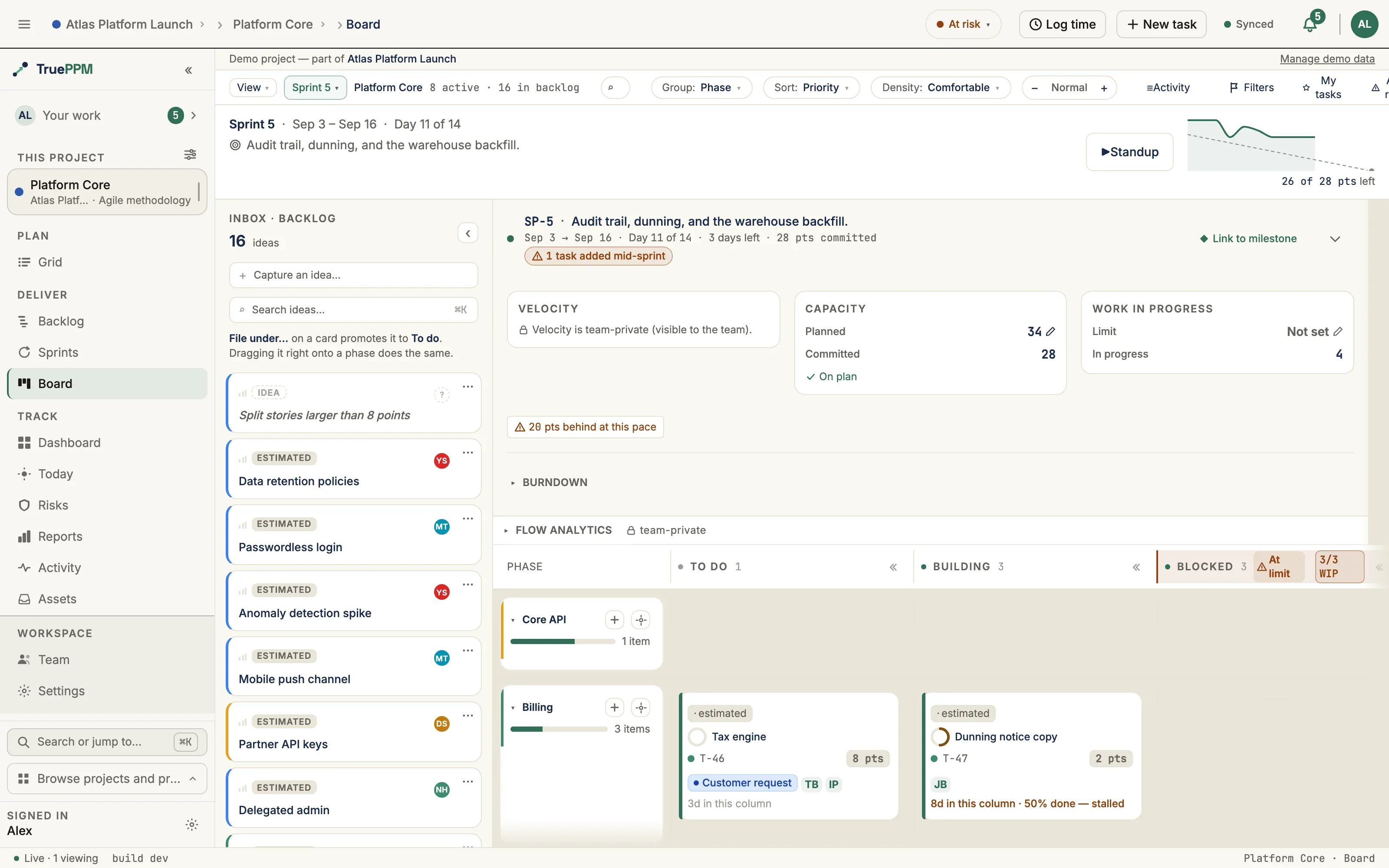
- Backlog — cards not yet committed to a phase live in a dedicated surface beside the working columns, not as a column of their own. Backlog is intake — undated, unrefined, not-yet-committed work — so it stays visible while you work the active board without it. Three layout variants are available from the toolbar’s segmented control: Rail (left-side band, the default), Drawer, and Queue.
- Working columns — the committed-work columns, rendered as phase swimlanes (one row per phase of the project outline). Columns are configurable per project — labels, visibility, WIP limits (WIP means work in progress — a cap on how many cards a column can hold at once, so work doesn’t pile up faster than the team can finish it), and accent colors — and default to:
| Column | Underlying status | Meaning | Default WIP limit |
|---|---|---|---|
| To Do | Not started | Committed; work has not begun | — |
| In Progress | In progress | Work is active | 5 |
| Review | Review | Work complete; awaiting review / sign-off | 3 |
| Done | Complete | Done | — |
Dragging a card from the backlog into a working column commits it (its status changes to match the column). Dragging is not the only way: each backlog card’s ··· menu carries File under…, which files the idea into a phase and lands it in To Do — the same move the drag performs, reachable from the keyboard and comfortable on a touch screen. Dragging a To Do card back to the backlog opens a confirmation dialog — demoting committed work is a deliberate decision. Cards that are In Progress or beyond cannot be demoted to the backlog.
The backlog rail captures with a single field at the top: type a name, press Enter, and the idea is created — the field clears and keeps the caret so you can fire off several in a row. A description, an assignee, or a date go in the task drawer on the card you just made; intake is for catching an item that has no place yet, and those are answers it does not have.
An old On Hold status still exists so projects created before TruePPM 0.1 keep working correctly, but it does not appear as its own column; on the board a task in that state is treated like a backlog item.
The board grid
Section titled “The board grid”Fixed-width columns that scroll
Section titled “Fixed-width columns that scroll”Working columns are fixed-width tracks. A board with more columns than fit does not squeeze them thinner — it scrolls horizontally, so a card is the same size on a four-column board and a nine-column one.
- Track width follows the Zoom stepper, not Density: Small 208px, Normal (the default) 272px, Large 336px, with the phase sidebar narrowing alongside it. Density changes what a card renders; zoom changes how much board fits on screen.
- Resize one column by dragging the right edge of its header. The handle is a keyboard-operable separator: focus it and press ← / → to nudge, Shift + arrow for a coarse step. Widths are clamped to 200–800px.
- A resized width is remembered per browser, not per project and not on the server, so it follows you around this browser and nobody else sees it.
- On a screen narrower than 768px the mobile layout takes over and this grid does not apply.
Sticky headers
Section titled “Sticky headers”The grid pins its chrome so you never lose your place in a long board:
- The column header row stays pinned to the top as you scroll down.
- The phase sidebar stays pinned to the left as you scroll sideways.
- The corner cell between them — labelled Phase — is pinned on both axes.
Each column header carries, left to right: a status dot, the column label, the count of cards in that column across the whole board, and then a WIP trend arrow, an At limit / Over limit chip, the WIP badge, the collapse button, and the resize handle. The breach chip appears whenever a column is at or over its limit, whether or not Show WIP limits is switched on in the More⋯ menu — a breach is not something you should have to opt into seeing.

Collapse a column to a stub
Section titled “Collapse a column to a stub”Press the « button in a column header (“Collapse In Progress column”) to fold that column down to a 34px stub with its label turned on its side and its card count. Click the stub to expand it again.
- A collapsed column is still a drop target — drag a card onto the stub to move it there without expanding anything first.
- The stub keeps its signals: the count reads
6/5when the column breaches its WIP limit, and a colored left edge marks a stub that is hiding at least one of your cards. - A banner above the grid says how many columns are collapsed (“2 columns collapsed”) and, when relevant, “1 of your card hidden” with a one-click Expand columns containing your cards. A 1 over WIP chip opens a WIP limit status popover listing the breaching collapsed columns; Esc closes it and returns focus to the chip. Expand all → restores every column.
- There is deliberately no floor — you can collapse every column at once. The banner is always the way back.
- Which columns are collapsed is remembered per project in this browser only. It is not stored on the server, so it does not follow you to another device and never changes what a teammate sees.
Focus one phase lane
Section titled “Focus one phase lane”Each phase lane’s header carries a crosshair toggle — “Focus on Foundation” — that hides every other lane so you can work one phase of the WBS at a time.
- Focus supersedes every other lens: with a lane focused, My tasks, at-risk, due-soon, and critical-path lenses do not add lanes back.
- A banner reads Focused on Foundation · other lanes hidden with an Exit focus → button.
- Focus lives in the URL as
?focus=<phase id>, so a focused board is a shareable link that survives a refresh, and the browser Back button exits it. Pressing the same lane’s crosshair again also exits. - If the link points at a phase that no longer exists, the board simply shows every lane rather than rendering empty.
Lane focus and lane collapse are separate controls on the same header: collapse folds one lane away and leaves the rest, focus hides everything except one.
Neither column collapse nor lane focus has a keyboard shortcut.
Board cards
Section titled “Board cards”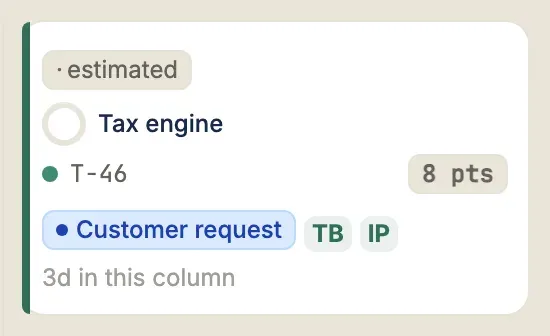
Each card shows:
- Task name and task reference —
ENG-2026-T-8, using the project key from Settings → General as the prefix. Without a key it readsT-8. The reference is formatted server-side, so the web app, a PDF export, and an MCP client all show the same string. - Assignee avatars (up to three, with +N overflow)
- Readiness chip —
idea/estimated/ready/baselined, shown only when the board holds more than one readiness value (see Readiness states) - Risk badge — count of linked active risks, colored by max severity
- Blocked indicator — shown when any predecessor task is not yet complete
- Sprint chip — when the task is committed to a sprint
- Progress ring — % complete, fills as work progresses
- CPI badge — the cost performance index (a ratio showing whether the task is running under or over its budgeted cost), shown when cost data is available
Card health signal
Section titled “Card health signal”0.4 consolidated a card’s stacked delivery chips — float, dwell, cost, and the schedule/cost performance ratios below — into a single worst-offender badge that surfaces the one highest-severity signal at a glance. The severity order is based on the task’s actual delivery state, never on PM priority rank:
- Blocked (⛔) — a predecessor is not yet complete, with the dependency count
- Stale (⚡) — past the column’s aging threshold and stalled; escalates when it passes twice the limit
- Critical path / late (⚑) — on the critical path (the chain of tasks that directly controls the project’s finish date), or running on negative float (float is how many days a task can slip before it delays the project — negative means it has already used that cushion up and is now the thing driving the delay)
- Behind (📉) — behind schedule or over budget, when Earned Value Management (EVM) mode is turned on. EVM compares planned, actual, and earned cost/schedule progress to answer “are we ahead or behind, and by how much” — the schedule ratio is called SPI, the cost ratio CPI; under 1.0 means behind or over budget.
An on-track card shows no badge. Every badge carries a glyph and a label (never color alone), so the signal reads without relying on hue.
The badge is expandable, not lossy — the full chip set is one interaction away. At comfortable density (the default), hover, focus, or tap the badge to reveal the complete health chips and baseline-variance panel; the tap target meets the 44px minimum and the disclosure is keyboard- and screen-reader-operable (press Esc to collapse). At detailed density the full chip set stays inline with no badge; at compact density only the badge shows.
Custom fields on cards
Section titled “Custom fields on cards”A project’s custom fields — the Text, Number, Date, Single-select, Multi-select, Person, and Checkbox fields you define in Project Settings → Workflow → Fields — can show their value directly on the board card, so you can scan a task’s metadata without opening the drawer.
This is opt-in per field. A field’s value appears on cards only after someone with the Scheduler role or higher flips its Show on card switch in Project Settings → Workflow → Fields. Every field is off by default, so the card stays scannable until you deliberately add to it.
How values render
Section titled “How values render”Values render as compact, type-aware marks that reuse the card’s existing chip vocabulary:
- Single-select / Multi-select — a colored option chip. The option’s color is always paired with its label, never color alone.
- Checkbox — a neutral ✓ mark. A checked box is not a health signal, so it never reads as green.
- Text / Number / Date — a
Label: valuepair, so the datum is self-describing without a legend. - Person — an avatar initials pill, grouped after the task’s assignees and named by its field, so it is never mistaken for an assignee.
Custom-field marks are the lowest-priority content on the card. They render after every existing element and never displace the health badge or the story-point pill — a custom field can’t push a delivery signal off the row. When space is contested, they are the first content to collapse into overflow. Unset values render nothing — no placeholder, no empty chip, no reserved space.
Per density
Section titled “Per density”How many marks show inline depends on the card density you are viewing:
| Density | What shows |
|---|---|
| Comfortable (the default) | Up to 3 marks inline, plus a +N more button that opens a tap-to-peek list of the rest |
| Compact / mobile | A single ⊕N button on the card bar; tap it to peek every value |
| Detailed | All flagged values, inline |
Hiding custom fields on your board
Section titled “Hiding custom fields on your board”A per-user board switch, Show custom fields on cards (in the board’s settings panel, on by default), hides the whole class from your own view in one click. It is a view preference: turning it off changes only what you see and leaves every field’s Show on card setting untouched, so muting the cards on your board never changes them for the rest of the team.
Moving cards
Section titled “Moving cards”Drag a card to a new column to change its status. The status change is optimistic: the card moves immediately, and the API call fires in the background. If the API call fails, the card snaps back with a toast.
Keyboard alternative: every card’s ··· overflow menu includes a Move to… item with a submenu. Arrow keys navigate the submenu; Enter commits. Screen readers announce the move as it happens.
Moving cards offline
Section titled “Moving cards offline”The board keeps working with no signal. If you change a card’s status while offline — by drag, the Move to… menu, or the keyboard — the card moves immediately and the change is saved to a durable on-device queue that survives a page reload. Each queued card shows a Pending badge so you can see at a glance what has not yet reached the server.
When you reconnect, the queued moves are sent automatically and the Pending badges clear. Moves apply last-write-wins per card: only the most recent status you set for a card is sent. If a card changed on the server while you were offline, your queued move is reverted to the server’s latest state and a toast explains what happened, rather than silently overwriting someone else’s change.
The board also renders from its last successful fetch when you reopen it offline, so you can review the current state without a connection. Offline support currently covers card status changes and flagging a task blocked — creating tasks, editing card details, and reordering phases still require a connection.
Toolbar
Section titled “Toolbar”The board toolbar (top of the board) groups its controls into these clusters:
- Search — a card search box (see below) that leads the toolbar
- Primary chips — Group, Sort, and Density popovers (card density, plus a separate backlog-card density)
- Zoom — a Small / Normal / Large stepper that scales the board surface (see below)
- Filters — a ⚑ Filters button that opens the facet panel (see below); the button carries a badge with the count of active filters
- Quiet toggles — My tasks (only tasks assigned to you), At-risk, and Cost
- Layout segmented control — Rail · Drawer · Queue backlog layout variants
- More⋯ overflow — collapse/expand all lanes, WIP limit chips, column Tints, EVM mode, the Columns configuration panel, and Export PDF (see below)
Search
Section titled “Search”The toolbar’s search box finds cards by title and description across the project. Press / anywhere on the board to focus it (typing in a form never steals focus to search).
- As you type, matching cards stay lit and the rest dim, so the card you want stands out in place — the board never reflows or hides cards.
- A chip shows the match count; clear the search with the × button or Esc.
- The query is reflected in the URL as
?q=…, so a searched board is a shareable link. - Search respects your project role: results never include cards from projects you are not a member of, and the search response carries no cost or other role-gated fields.
Matching is a case-insensitive substring (searching foundation finds “Foundation pour”). Title matches rank above description-only matches. Comment search will arrive with threaded comments.
Filters
Section titled “Filters”The ⚑ Filters button opens a facet panel that narrows the board to the cards you care about. Press f anywhere on the board to open it (typing in a form never opens the panel). It offers four facet groups:
- Assignee — pick one or more people, plus an explicit Unassigned option for cards nobody owns yet.
- Priority — High, Medium, Low, or Unranked, bucketed from each card’s priority rank.
- Due — Overdue or This week, derived from the card’s finish date. Only scheduled cards (a committed start date, or a card pulled into a sprint) are eligible — an uncommitted backlog idea never counts as “due”.
- Label — pick one or more of the project’s labels. The facet lists the labels actually present on this board’s cards, so it never offers a label that would match nothing.
Facets combine as you would expect: a card must match every group you have narrowed, and any of the values you picked within a group. Selecting Alice and Bob under Assignee plus High under Priority shows Alice’s and Bob’s high-priority cards.
- Cards that don’t match dim to the background and drop out of keyboard and screen-reader navigation, so faceting never strands focus on a hidden card — the board never reflows.
- The Filters button shows a badge with the number of active facet values, and an active-filter bar below the toolbar lists each one as a removable chip so the lens is always visible. Remove a chip, or press Clear all, to widen the board again.
- If nothing matches, a No cards match these filters banner replaces the board with a one-click Clear filters action.
- The active facets are reflected in the URL (
?fa=…&fp=…&fd=…&fl=…), so a filtered board is a shareable link, and your selection is also remembered per project in this browser. - Saving the current board as a named view captures the active facets — including the Label facet — along with sort and display settings; loading that view restores them, so a saved view carries its filter state rather than leaving it stranded in the URL or this browser’s storage.
Filters compose with the My tasks and At-risk quiet toggles — those remain independent one-tap lenses alongside the facet panel.
The Zoom stepper (Small / Normal / Large) scales the board surface only — the phase-column width and the gaps between columns and cards — so you can fit more of a dense board on screen or spread it out for a presentation. Unlike browser zoom (Cmd/Ctrl ±), it leaves the sidebar, top bar, and tabs at their native size.
- Use the − / + buttons, or focus the control and press the arrow keys.
- Your choice is remembered per browser and survives a refresh.
- Zoom is an independent axis from Density: Density controls per-card padding; zoom controls how much of the board fits on screen. The control is hidden on phones, where the mobile layout governs sizing.
Export to PDF
Section titled “Export to PDF”Export PDF in the More⋯ overflow will produce a boardroom-clean PDF of the board for a deck or a client who has no portal access — no screenshots, no copy-paste. The export is a faithful, static projection of what you currently see:
- Swimlanes and columns mirror the on-screen layout: one block per phase, the same status columns.
- Cards carry their title, assignee initials, due date, and key chips (critical-path marker, blocked, story points, milestone).
- A footer stamps the project name, the generation timestamp, the exporting user, and the active filter / sprint context, so the artifact is self-describing.
The export honors your current view — the selected sprint scope and any active filters (My tasks, At-risk, Tech debt, search) carry through, because the PDF renders the same filtered card set the live board draws. Tall boards paginate automatically. The whole document is generated in your browser — nothing is uploaded, so anyone who can view the board can export it. The action is hidden on phones; export from a desktop.
Readiness states
Section titled “Readiness states”Readiness is calculated automatically from the task’s own data (not something you set directly), resolved in this order (most specific first):
| State | Condition |
|---|---|
baselined | Task is part of the project’s active baseline — the frozen snapshot of the schedule the plan is measured against (always wins over the other states) |
idea | No assignee and still in the backlog (unrefined, uncommitted) |
ready | Has an assignee and at least one dependency link to another task |
estimated | Has an assignee with no dependencies yet, or was moved out of the backlog without an assignee (committed but unowned) |
idea only applies while the task is in the backlog: once a card moves to any working column, a commitment decision has been made, so it reads as estimated even with no assignee.
The readiness chip drives the card’s left accent bar color, except a task on the critical path always shows red regardless of its readiness.
Readiness is a comparative signal, so the chip is hidden when every card on the board
shares the same state — the steady state of any project past planning is “everything is
baselined”, and a chip that is true of all of it tells you nothing while costing a line on
every card. The chip returns the moment two states are in play. The left accent bar still
carries readiness either way, and the state is always in the card’s detail view.
Named lanes inside a column
Section titled “Named lanes inside a column”A team that works Review, QA and Blocked as distinct stages can split a single column into up to six named lanes. Open Project settings → Workflow → Statuses, expand Lanes on the column you want to split, and add a lane. Each lane gets its own column track on the board, its own card count, and optionally its own WIP limit.
What this does not change is the point of it. A card in the QA lane still has
status = REVIEW. Burndown, throughput and cycle-time rollups, MS Project export,
saved views, the sprint report and every API integration read the same five canonical
statuses they always have — nothing downstream has to learn about your lanes. The five
statuses are still fixed: lanes divide a column, they never add one.
Practical notes:
- A lane belongs to one column. Lane names are unique across the whole project, so a lane names exactly one place on the board. Moving a card to another column clears its lane — the destination’s lanes are different lanes.
- Deleting a lane never loses a card. Anything left in a deleted lane appears in the column’s first lane, and the header count agrees.
- Deleting a lane tells the people whose cards moved. Everyone with work in the project gets an inbox notice naming the lane, where its cards went, and how many of their own items were in it — see Config-change notices. Renaming a lane, adding one, reordering, or changing a WIP limit notifies nobody: nothing moved.
- A card with no lane set sits in the column’s first lane.
- Collapsing a column folds all of its lanes into one stub, and the stub’s WIP band reads against the column limit, not any one lane’s.
- On a phone the board still pages by status — lanes are a desktop grid feature.
WIP overload
Section titled “WIP overload”When a column exceeds its configured WIP limit, the column header turns amber and a warning badge appears. See WIP Overload for details.
Sprint integration
Section titled “Sprint integration”When a sprint is active, committed tasks appear in the To Do → In Progress → Review → Done columns as normal. Sprint-committed tasks are never shown in the Unscheduled gutter on the Schedule view, regardless of whether they have a planned start date.
Sprint view
Section titled “Sprint view”By default the board shows every committed task in the project. A scope switcher in the toolbar (next to the saved-views dropdown) will let you focus the phase columns on a single sprint:
- Project — the default; all committed tasks.
- A sprint — only tasks committed to the selected sprint. The dropdown lists active, planned, and completed sprints (viewing a closed sprint’s board is a legitimate retrospective read).
The selection persists in a ?sprint= URL parameter, so a sprint-scoped board is a shareable link. The backlog rail is unaffected — it stays the intake source you drag from. While viewing an active or planned sprint, dragging a card from the backlog (or another phase) into a phase column assigns it to that sprint — for an active sprint it enters the team’s scope-injection review as a pending item. A completed-sprint view is read-only for assignment.
Board cadence
Section titled “Board cadence”Agile and hybrid projects can run their board on one of two cadences, set in Project → Settings → Workflow & fields → Board cadence (Resource Manager or above):
- Sprint-based (the default) — the board carries the full sprint chrome: the active-sprint panel, burndown, and sprint header.
- Continuous flow (Kanban) — a continuous-flow board with no sprint cadence. The sprint panel, burndown, and sprint header are hidden, and the board leans on the always-present Flow analytics panel (cycle time, throughput, cumulative flow) instead. That panel also carries a throughput forecast: a Monte-Carlo estimate over recent weekly throughput that headlines a P80 “finish in ~N weeks — by <date>” answer for the remaining backlog, so a Kanban team gets a forward delivery date without sprints or velocity. Cards still move through the same working columns.
Switching cadence is non-destructive — an in-flight sprint is preserved, not deleted, so switching back to sprint-based brings it back verbatim. Waterfall projects don’t use sprints, so cadence doesn’t apply to them.
Aging cards
Section titled “Aging cards”Each working column can carry an aging threshold in days, configured per column in Workflow & fields (Resource Manager or above). When a card sits in its column longer than that threshold it gets a calm “aging” badge showing its dwell time — a quiet nudge that work is stalling.
Every card with a recorded column-entry time carries a dwell line reading
4d in this column · 60% done (or Moved here today on the day it lands). The progress
clause is omitted at 0% and at 100% — a card in Done saying “100% done” adds nothing. The signal is board-local: it’s visible to everyone on the board but is never rolled up into a program or portfolio metric. Leave a column’s threshold blank to use the built-in default for that status.
Mobile
Section titled “Mobile”On a screen narrower than 768px, the board reflows into a horizontal snap-scroll layout: each status column becomes a full-width page, and swiping settles cleanly on one column at a time rather than leaving you half-scrolled between two. The phase swimlanes collapse on a phone — each column shows a flat list of its cards across every phase, so the narrow screen carries the status axis without nesting.
A dot-strip above the board names every column with its task count and a health dot, and acts as the map: the active column’s bar fills solid, and tapping any segment jumps to that column. Card anatomy, WIP limits, and the critical / blocked treatment are unchanged from desktop — only the layout reflows.
The backlog rail and drawer are both desktop-only surfaces and never render on a phone, even if you picked Rail or Drawer from the toolbar before switching to a narrower screen — that choice is preserved and takes effect again once you’re back above 768px. The snap-scroll columns only ever show tasks already in a workflow status, so a phone with Rail or Drawer selected has no way to see or triage existing Backlog items — switch to Queue to work the backlog on a phone. The floating + still covers new-task capture under any layout, landing new entries in Backlog by default under Queue.
The floating + opens a compose bar across the bottom of the screen rather than a full-screen form. It is one field, it names where a committed row will land (“Lands in To Do” — the column in view, or Backlog under the Queue layout), and it stays open after each entry so a run of items can be captured without reopening anything. The bar is not shown at all to a Viewer, or on a closed sprint.
Permissions
Section titled “Permissions”| Action | Minimum role |
|---|---|
| View the board | Viewer |
| Move cards, update status | Member |
| Create tasks from the board | Member |