Personal Access Tokens
A Personal Access Token (PAT) is a credential that lets a script, notebook, or command-line tool call the TruePPM API as you. It carries exactly your permissions — everything you can see and do in the app, and nothing more. A PAT is how a PMO analyst runs a weekly portfolio export, a Product Owner scripts a roadmap dump, or a developer wires up CI tooling, without embedding a password or holding a browser session open.
How a PAT differs from a project or program token
Section titled “How a PAT differs from a project or program token”TruePPM has two token surfaces, and they answer different questions:
| Personal access token | Project / program API token | |
|---|---|---|
| Owned by | You (a user) | A project or a program |
| Acts as | You — your RBAC applies | The token’s minter, scoped to that project/program |
| Minted from | Settings → Personal access tokens | Project/Program Settings → Integrations |
| Typical use | ”Run this report as me” | CI or an integration pushing tasks into one project |
Both use the same tppm_ bearer scheme. The difference is whose authority the
token carries.
The bearer scheme
Section titled “The bearer scheme”Send a PAT in the Authorization header on every request:
Authorization: Bearer tppm_<64 hex characters>The tppm_ prefix makes the token greppable by secret scanners (GitGuardian,
GitHub secret scanning). Only the random portion is secret; TruePPM stores just a
SHA-256 hash of the token, never the token itself.
Creating a token
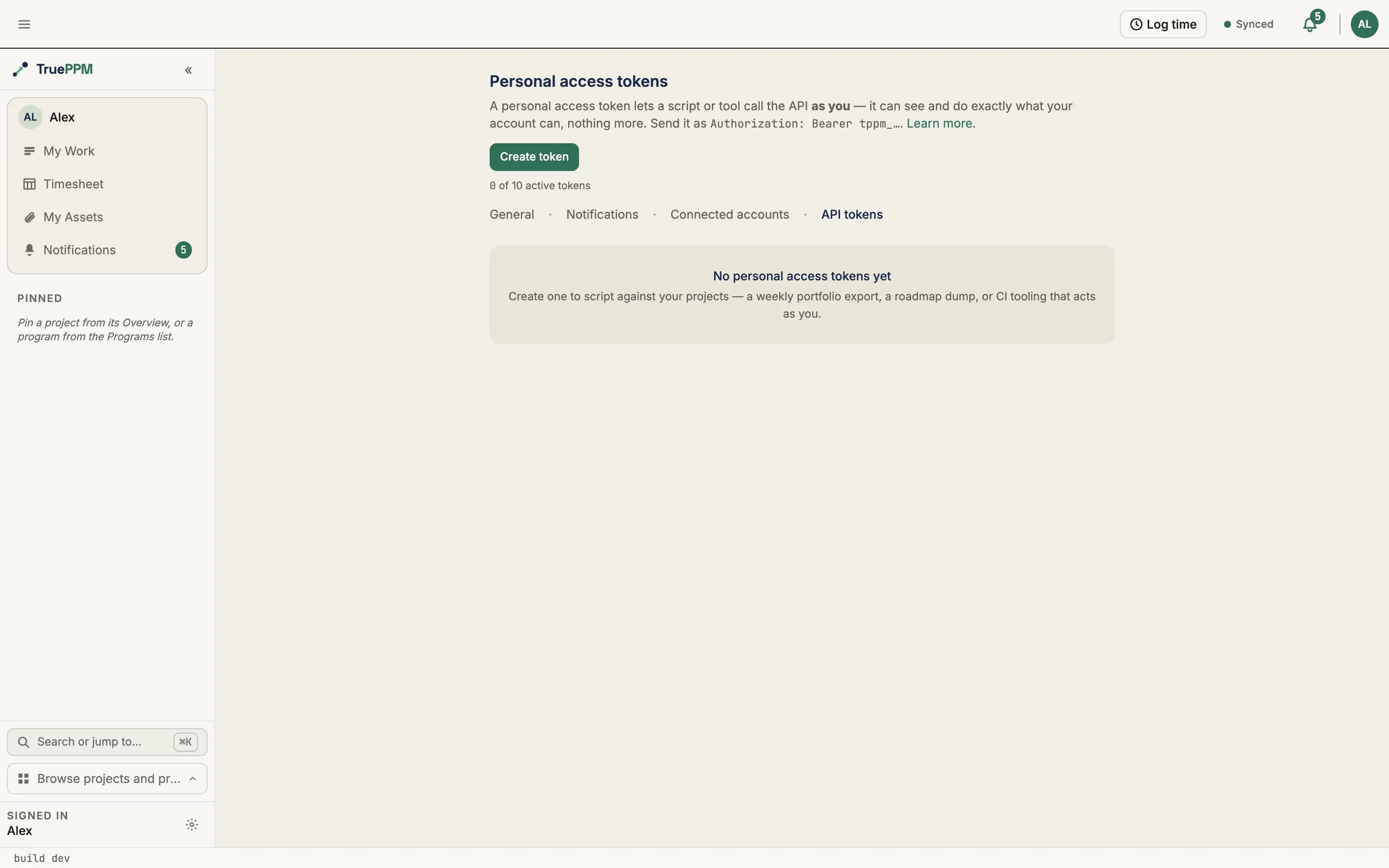
Section titled “Creating a token”- Open the user menu and choose Personal access tokens
(
/me/settings/api-tokens). - Click Create token.
- Give it a descriptive name (e.g. “Power BI export”) so you can tell your tokens apart later.
- Choose what the token is for (see Token scope below): Full access (acts as you) for scripts and CI, or Read-only for AI assistants to connect an MCP client.
- Set an expiration date. It is optional for a full-access token (leave it blank for one that never expires) and required for a read-only AI token.
- Click Create token.
The raw token is shown exactly once, with a copy button. Copy it now and store it somewhere safe — TruePPM cannot show it again, because it only keeps the hash. If you lose it, revoke the token and create a new one.
Token scope
Section titled “Token scope”A personal token is minted with one of two scopes:
- Full access (
legacy:full) — the default. Reads and writes everything your account can, for scripts, notebooks, or CI tooling that acts as you. - Read-only for AI assistants (
mcp:read) — grants safe-method (GET) access only and is rejected at every write path. This is the scope the MCP server accepts: the MCP read surface admits only owner-scoped personal tokens, so this is the token you mint to point Claude Desktop, Cursor, or Zed at your instance. A read-only AI token must carry an expiry no more than 365 days out, so a leaked read credential is self-limiting and cannot be minted as effectively non-expiring.
When you create a read-only AI token, the one-time reveal also shows the two
steps to connect: the pip install trueppm-mcp command that puts the server on
your PATH, and a ready-to-paste claude_desktop_config.json snippet built from
the token. Run the first, copy the second into your MCP client, and skip the
manual setup. See Connect your MCP client for the full
walkthrough, including Cursor and Zed.
Read-only AI tokens are personal only. The project and program Settings →
Integrations pages mint legacy:full inbound-sync tokens and do not offer this
scope — a token minted there has no owner, and the MCP read surface refuses it.
The 10-token cap
Section titled “The 10-token cap”You can hold up to 10 active tokens at a time. “Active” means not revoked and not past its expiry — revoking a token or letting one expire frees a slot. The create button is disabled once you reach the cap; the page shows a live “N of 10 active tokens” indicator. The cap bounds the blast radius if your account is ever compromised and keeps your token list navigable.
Expiry
Section titled “Expiry”An optional expiration date lets a token retire itself. Once a token is past its
expires_at, TruePPM rejects it exactly as if it had been revoked — the request
fails authentication with a generic 401. Tokens without an expiry never expire
on their own; revoke them when you no longer need them. A read-only AI
(mcp:read) token is the exception: its expiry is required and capped at 365
days out, so it cannot be minted as effectively non-expiring.
Revoking a token
Section titled “Revoking a token”On the Personal access tokens page, click Revoke next to any active token and confirm. Revocation takes effect immediately: any script or tool using that token starts failing authentication on its next request. Revocation is permanent — you cannot un-revoke a token, only create a new one.
Revoking is real containment for your credentials, because a token cannot manage tokens: whoever held the leaked credential could not have minted a replacement with it. A token also cannot reconfigure single sign-on, so it cannot widen who may sign in and at what role.
It is not yet containment for everything. A leaked token belonging to a workspace
admin can still change a member’s role, add someone to a group or grant a group a role on a
project; and one belonging to the workspace owner can still transfer ownership.
None of those is undone by revoking the token, by a password reset, or by
off-boarding. (A workspace invite the admin sent that has not yet been accepted
is revoked by a password reset, off-boarding or revoke_api_tokens; an invite
already accepted created a real membership, which is not undone.) Treat revocation as cutting off the credential,
then check what that credential did while it was live — your
token history is the starting point.
A project admin’s token can no longer rotate a git-automation webhook secret, mint
a public share link, or register/repoint an outgoing webhook — those routes now
refuse token callers the same way token management itself does. A grant either was
minted before that changed, and a password reset, off-boarding, or the operator’s
revoke_api_tokens --user, --all-personal, or --all sweep (see
Rotating credentials after a suspected leak)
now revokes it too — an outgoing webhook is deactivated rather than deleted, so an
admin can confirm what happened and re-enable it once the credential issue is
resolved.
A password change revokes every PAT
Section titled “A password change revokes every PAT”When you reset your password, all of your personal access tokens are revoked automatically. A password reset is you asserting that your credentials may be compromised, so TruePPM cuts off not only your live sessions but every long-lived personal credential you minted. You will need to create new tokens afterward.
The same reset also revokes any workspace invitation you sent that has not yet been accepted. If you are a workspace admin who resets a forgotten password, re-send those invitations afterward as new ones.
This does not touch project or program API tokens — those are shared team assets minted by a project or program admin, not personal credentials, so a password change never breaks a team’s CI integration.
Off-boarding revokes every PAT
Section titled “Off-boarding revokes every PAT”When a workspace Admin deactivates a member or removes them from the workspace, all of that member’s personal access tokens are revoked and all of their sessions are signed out, in the same transaction that disables the account. Off-boarding is the control an operator relies on to terminate access, so it has to cut long-lived credentials too — not only the browser session, which is the only part of it a departing user’s access visibly loses.
Revocation is durable and one-way. Reactivating a member restores their login, but it does not un-revoke their tokens: those tokens were outside the organization’s control while the member was gone, so a returning member creates new ones.
As with a password change, project and program API tokens are left alone — they are shared team assets, and they keep working through an off-boarding.
A token cannot manage tokens
Section titled “A token cannot manage tokens”Nothing authenticated by a token can reach the token pages or their API —
minting, listing, and revoking all require a signed-in session, and a token
caller gets a 403 whatever its scope. That restriction is what makes revocation
meaningful: without it, anyone holding a leaked token could quietly mint siblings
of their own before you noticed, and revoking the one token you knew about would
contain nothing. It also means they cannot revoke your tokens to break your
automations.
The same rule covers project and program tokens, so a leaked personal token cannot be turned into a team integration token either — which would otherwise be the more durable foothold, since team tokens are deliberately left alone by password resets and off-boarding.
Operators sweeping tokens after an incident use the
revoke_api_tokens
management command; note that rotating the JWT signing key does not revoke API
tokens — see
Security.
Your token history
Section titled “Your token history”GET /api/v1/me/api-token-audit/ returns your own token lifecycle log: every
mint and every revoke, with who did it, from which IP, and — for a revoke — why
(your own action, a password reset, an off-boarding, or an operator sweep). It is
append-only and scoped to you; nobody else’s rows are visible, and yours are not
visible to anyone else.
It answers “when did this token appear and when was it cut off”. It does not answer “what did this token do” — per-request activity for a full-access token is not recorded, and the token list’s Last used column is the available signal for whether a token is live at all. (Per-call auditing exists for read-only AI tokens; see agent oversight.)
Security notes
Section titled “Security notes”- A PAT is a full-authority bearer of your account. Treat it like a password: never commit it to source control, paste it into a shared document, or send it over chat.
- A PAT is not a superuser credential. It acts strictly as you — a Viewer’s token can only read what a Viewer sees.
- TruePPM stores only a SHA-256 hash of each token, so a database compromise does not expose usable tokens.
- Every mint and revoke is written to an append-only audit log — including the revocations you did not perform yourself, on password reset and off-boarding.
- A full-access token is not an AI-agent credential. The instance-wide MCP
kill switch and a team’s agent read opt-out bind
mcp:readtokens; they do not restrain a token that carries your own full authority. Mintmcp:readfor an AI client — that is what makes those controls apply.
Related
Section titled “Related”- Inbound task sync — project/program tokens for pushing tasks in from an external system.
- Connected accounts — connect your own GitLab or GitHub account for read-only task-link previews.
- MCP server — point an MCP client at your instance with a read-only token.