Assets
Assets is for a PM, Scrum Master, or anyone on the team who needs to find reference material without hunting through tasks one by one. Reference material for a project lives scattered across individual tasks — a spec attached here, a pull-request link there, a design doc on a third task. The Assets tab gathers all of it into one place. It is a read-only, newest-first feed that unifies two things every task can carry:
- Files — attachments uploaded to a task (or an external file URL pinned to it), from the task collaboration attachment grid.
- Links — the git and cloud-file external links on a task (GitHub/GitLab pull requests, Google Drive / Dropbox / Box / OneDrive files, or any URL), with their live status and labels.
Both appear as one chronological stream so a PM can answer “what specs, PRs, and reference docs exist across this work?” in a single glance, instead of opening tasks one at a time.
Where to find it
Section titled “Where to find it”- Project Assets — the Assets tab on any project, under the Track group of the view bar. It aggregates every task in that project.
- Program Assets — the Assets tab on any program. It aggregates every task across the program’s projects that you can read — a project you are not a member of contributes nothing to the feed, and never leaks its assets.
Program Assets is deliberately scoped to a single program’s projects. Rolling assets up across programs, at the portfolio level, is an Enterprise concern and is out of scope for the community edition.
Reading the feed
Section titled “Reading the feed”Each row shows, at a glance:
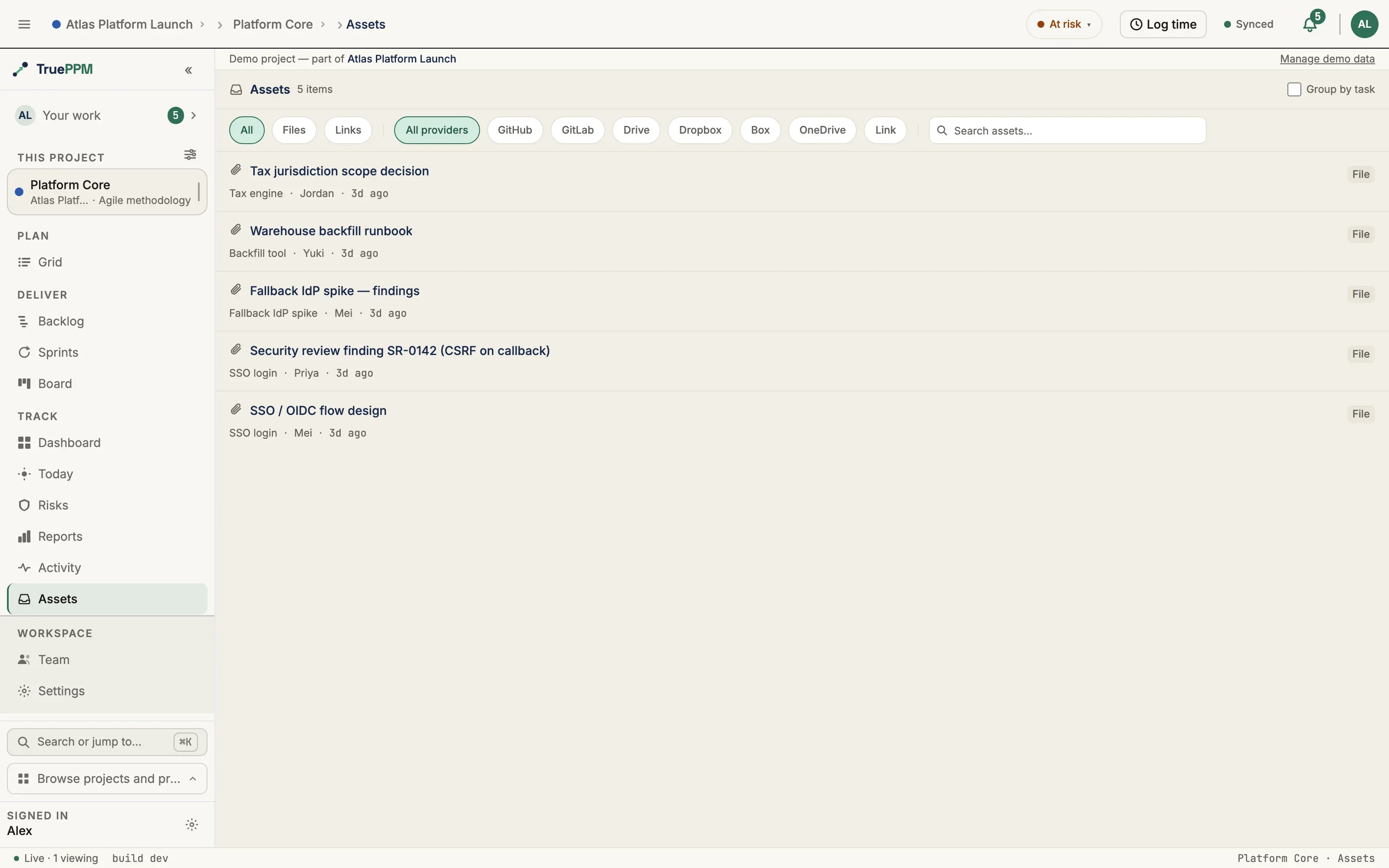
- a provider glyph (🐙 GitHub, 🦊 GitLab, 📂 Drive, a 📎 for a file, …);
- the title — the file name or the link’s custom title, linking straight to the file download or the external URL;
- a status badge for a git link (open · draft · merged · closed) or a type chip for a cloud file, or a neutral File chip for an attachment;
- the owning task, who added it, and when;
- any labels on a link.
Files never expose where they’re actually stored — clicking a file generates a temporary, secure download link on the spot, the same way the task drawer does.
Filtering and search
Section titled “Filtering and search”The feed is filterable without leaving the page:
- Kind — show everything, only Files, or only Links.
- Provider — narrow links to a single source (GitHub, GitLab, Drive, …).
- Label — narrow to links carrying a given label.
- Search — matches your text anywhere in a title or URL, across both files and links, so a search term never misses one side of the feed.
A Group by task toggle switches from the flat chronological list to a task-grouped view when you want to see everything attached to one task together. Long feeds page in with Load more — every asset is reachable, with nothing silently truncated.
Permissions
Section titled “Permissions”Assets are read-only here and inherit the visibility of the task they hang off: any project member (Viewer and above) can browse a project’s Assets, and a program member sees only the assets of the program projects they can already read. There is no separate asset-level permission — if you can open the task, you can see its assets in the feed. Adding, editing, and removing files and links still happens on the task itself, in the task detail drawer.