Calendar view
The Calendar view is for anyone on the team who needs a familiar week- or month-view answer to “what’s happening when” — a PM prepping for a status meeting, or a team member checking their week. It lays your project’s dated work over an ordinary Mon–Sun calendar. Where the Schedule view answers “what depends on what”, the Calendar answers “what is happening the week of the 24th” — the question you get asked in a status meeting.
It lives in the Plan group of the project view bar, at /projects/{projectId}/calendar.
Which projects show it, and which tasks appear
Section titled “Which projects show it, and which tasks appear”The Calendar’s nav entry is hidden on Agile projects and shown on Waterfall and Hybrid ones. Hidden means hidden from the view bar, not blocked: the route stays reachable by direct URL, because the methodology preset says “this is not how we work here”, not “this is not allowed”. See Methodology presets.
Open it on an Agile project with no dated tasks and it says so plainly, with a link across to your iterations rather than an empty grid.
Every task whose date span overlaps the window on screen is drawn. Dates come from the schedule: the earliest a task could start and finish, as the scheduling engine has calculated it (falling back to the task’s planned start if the engine hasn’t computed dates for it yet). A task with no start date never appears, and a task whose span crosses the edge of the window is drawn clipped to the window rather than dropped.
Month mode
Section titled “Month mode”Month is the default. The grid runs from the Monday on or before the 1st to the Sunday on or after the last day of the anchored month, which is four to six week rows depending on how the month falls.
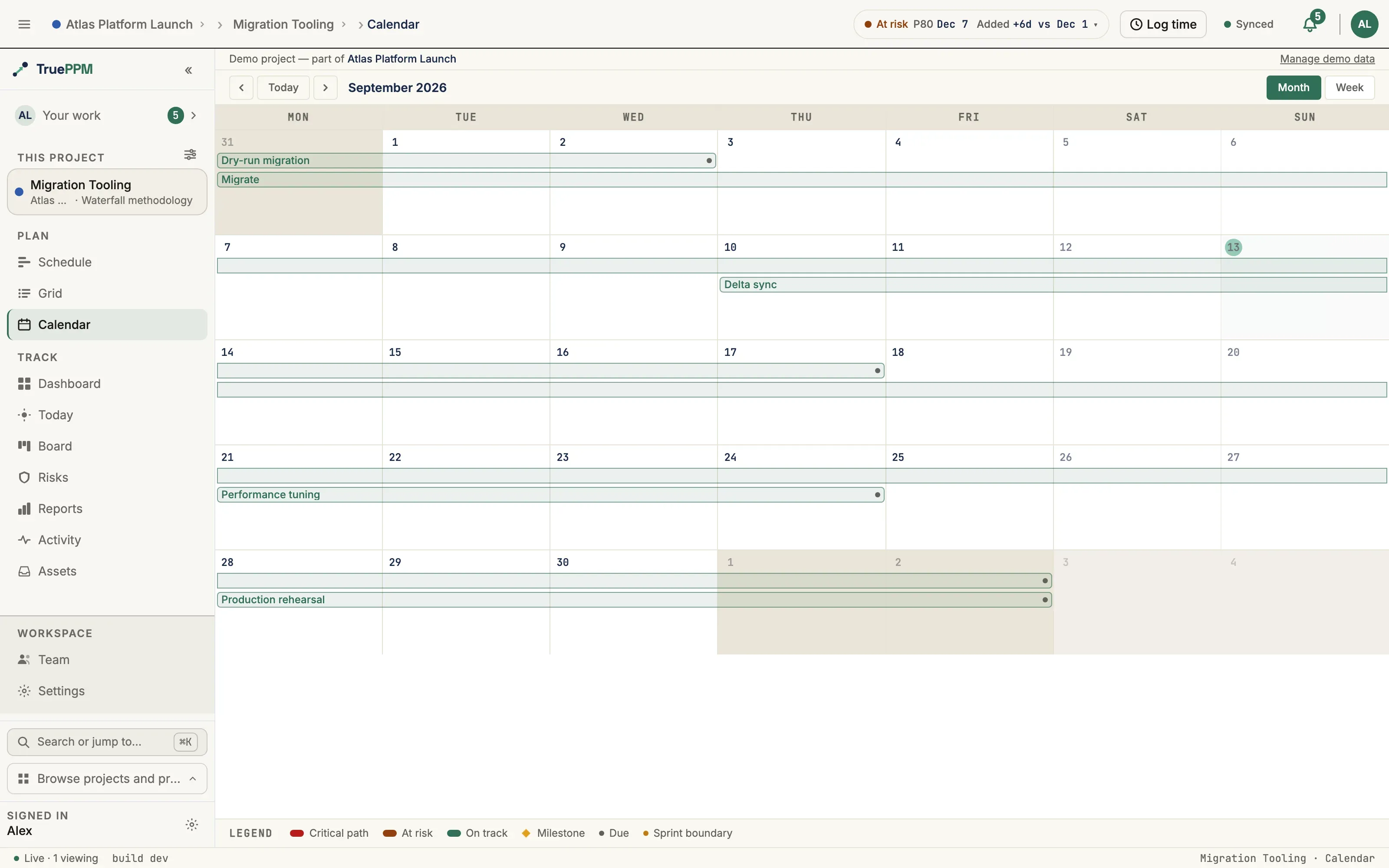
- Days that belong to the neighboring months are dimmed — sunken cell background, muted date number — so the month’s own shape stays legible.
- Saturday and Sunday columns are muted relative to the working week.
- Today gets a tinted cell and its date number in a filled circle.
The four-lane cap
Section titled “The four-lane cap”Chips stack in horizontal lanes within a week row: two tasks that don’t overlap in time share a lane, two that do overlap get a lane each. A month row shows at most four lanes. Any chip that would land in a fifth lane is not drawn; instead the day cell where it would have started shows a small +N more in its bottom-left corner.
Be aware of what that label is and isn’t: +N more is a count, not a control. Clicking it does nothing, and there is no popover behind it. It exists to tell you the row is not the whole truth.
The cap is there because a month packs four to six rows into one screen, so each row can only afford about four chips. The way to actually see everything in a busy week is to switch that week to Week mode, which has no cap.
Week mode
Section titled “Week mode”Week mode draws the single Mon–Sun week containing the anchor date, and the toolbar heading becomes that week’s date range instead of a month name. The range takes one of three shapes, so it never repeats information it doesn’t need and never drops information you do:
| The week | Heading |
|---|---|
| Inside one month | Aug 24 – 30, 2026 |
| Crossing a month | Aug 31 – Sep 6, 2026 |
| Crossing a year | Dec 29, 2025 – Jan 4, 2026 |
Two things change besides the row count:
- There is no lane cap. Every task touching the week is drawn, and the row grows taller to fit however many lanes it needs. There is no
+N morein week mode, because nothing is being hidden. The row never shrinks below a month row’s height, so a quiet week doesn’t collapse into a strip. - Nothing is dimmed for being out of month. Every day in a week row is inside the window by definition, so the out-of-month graying is a month-mode concept only. The weekend muting and the Today tint still apply.
A week with nothing scheduled in it says “No tasks in the week of Aug 24 – 30, 2026.” across the row — a tall empty row would otherwise read as a failed render rather than as an empty week.
Reading the marks
Section titled “Reading the marks”Task chips
Section titled “Task chips”A task is a colored bar spanning its start day to its finish day. A task that runs across a week boundary is drawn as one fragment per week row it touches, with only its true first and last fragments getting rounded ends — so a multi-week bar reads as continuous down the rows instead of as several separate tasks. The name is printed on the fragment that carries the real start.
Chip fill, first rule that matches:
| The task is | Fill |
|---|---|
| Complete | Green (on track) |
| On the critical path | Red (critical path) |
| Anything else | Blue (on track) |
Milestones
Section titled “Milestones”Milestones are not chips. A milestone is an amber diamond plus its name, drawn inside its own day cell under the date number. Whether something is a milestone comes from the task’s own milestone flag — never inferred from a zero-length duration — so a one-day task and a milestone are never confused for each other.
Two small dots carry information the bars can’t:
- A due dot sits at the right-hand end of every non-milestone chip’s final fragment — the day the task is due. Milestones opt out; a dated diamond already says it.
- A sprint-boundary dot sits in the top-right corner of any day on which a sprint starts or finishes, so cadence lands on the calendar without leaving the view. A project with no sprints simply has no dots.
Legend
Section titled “Legend”A legend strip is pinned along the bottom of the view in both modes and on the phone, naming all six marks: Critical path, At risk, On track, Milestone, Due, Sprint boundary. The at-risk color marks tasks in Review, which you’ll meet on the phone agenda rows and on the task-detail banner’s status dot.
Nothing here depends on color alone: milestones carry a diamond shape and a name, the due marker is a distinct dot, and every chip’s screen-reader label spells out its state — Design review, on critical path, due.
Navigating
Section titled “Navigating”The toolbar’s left cluster is ‹ · Today · ›, and it steps by whatever mode you’re in: a month at a time in month mode, a week at a time in week mode. The buttons name the unit for screen readers (Previous week / Next week). Today re-anchors to the current date without changing mode.
Both pieces of state live in the URL, so a calendar you are looking at is a link you can send:
| Parameter | Values | Default |
|---|---|---|
calView | month or week | month |
calAnchor | A date, YYYY-MM-DD | Today |
…/calendar?calView=week&calAnchor=2026-08-26 opens the week of August 24th for whoever you send it to. Both parameters are bookmarkable and survive navigating away and back.
Switching mode or stepping the window replaces the grid without moving focus, so both are announced to screen readers — “Week view, Aug 24 – 30, 2026” — and the grid itself is a labeled region naming the mode and window.
From the keyboard
Section titled “From the keyboard”The date grid is a real grid, not a stack of boxes that happens to look like one: it carries the standard grid semantics, every day cell is named with its full date — “Wednesday, March 11, 2026”, and ”…, today” on today — and you move around it with the arrow keys.
| Key | Moves to |
|---|---|
| ← / → | The previous / next day |
| ↑ / ↓ | The same weekday one week earlier / later |
| Home / End | The Monday / Sunday of the week you are on |
| Ctrl+Home / Ctrl+End | The first / last day the window draws |
The grid is a single stop in the page’s tab order — Tab brings you into it once, at today if today is on screen and at the anchored day otherwise, and Tab again takes you on to the tasks in that day. From there, tasks tab in the order you see them: down the rows, left to right across each week, and top to bottom within a day.
Movement stops at the edges of the window rather than rolling on into the next month. Stepping the window is what ‹ and › are for, and they announce where you have landed; an arrow key that silently changed the month would move the grid out from under the day you were standing on.
Opening a task
Section titled “Opening a task”Clicking a chip or a milestone diamond selects that task and opens an inline detail banner directly under the toolbar, rather than a modal — the calendar stays on screen behind it. The banner carries the task’s name, its status with a colored dot, its date range (a single date for a milestone), its assignees or Unassigned, and an Open full detail link through to the task page.
Clicking the same task again closes the banner, as does Close.
On a phone
Section titled “On a phone”Below 768px the seven-column grid would give each day about 60px — far too narrow for a readable chip or a 44px touch target — so the Calendar reflows to a date-grouped agenda list instead. The mode toggle, the navigation cluster, the detail banner and the legend all stay exactly as they are; only the grid is replaced.
- Every task overlapping the window is listed once, grouped under a sticky date heading.
- A task that started before the window opens is listed on the window’s first day, matching where its chip is clipped in the grid.
- Within a day, tasks are sorted by name.
- Each row is a full-width, ≥44px target that opens the same detail banner a chip does. Milestones show a diamond; everything else shows a status color bar — red for critical, green for complete, blue for in progress, amber for review, gray otherwise.
The list follows whichever mode you are in, so week mode narrows the agenda to that week.
Empty and error states
Section titled “Empty and error states”| Situation | What you see |
|---|---|
| Loading | A skeleton grid, announced as busy |
| The request failed | ”Couldn’t load the calendar.” with a Retry |
| The project has no tasks | ”No tasks yet” with + Add task — the button appears for Member and above, and is withheld from Viewers |
| No tasks, and the project is Agile | ”Calendar isn’t part of this project’s workflow”, with a link to your iterations and a pointer to the methodology setting |
| Tasks exist, but none in this window | ”No tasks in {window}.” — named explicitly on the phone list and in a week row, and conveyed by the month grid’s empty dated cells |
See also
Section titled “See also”- Schedule view — the dependency-aware plan the Calendar’s dates come from
- Calendars — a different thing with a similar name: the working-day calendars that decide which days count toward a duration
- Methodology presets — which views each preset shows
- Sprints — the cadence the sprint-boundary dots come from